

How to change the image shape for reviews/orders notification?
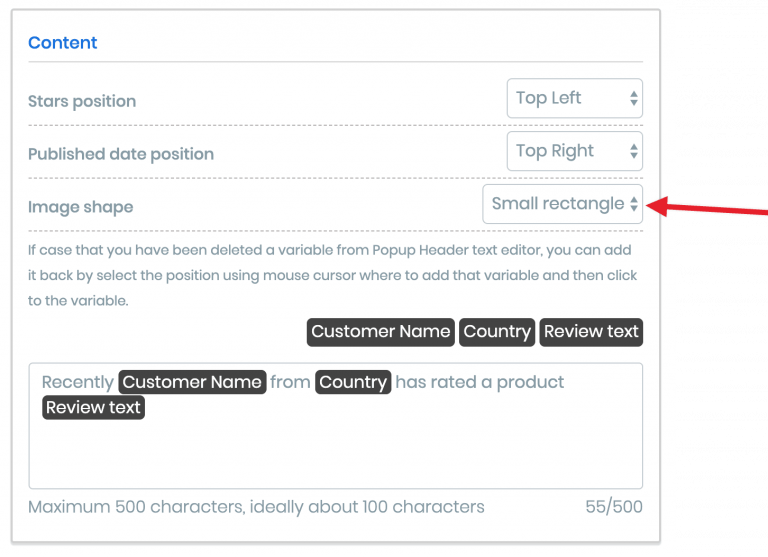
You can choose from 3 image shapes for the product image in Popify reviews and recent orders popups. Create or edit the popup, open the second step, Placement, scroll to the Content section and pick a shape from the Image shape dropdown. Then click Launch at the bottom of the Design step to save.
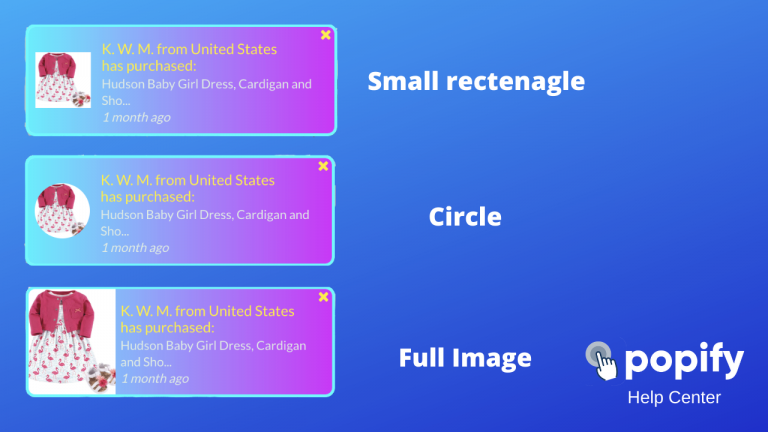
Change the image shape
1) Create a new popup or edit an existing one.
2) Go to the second step, Placement, and scroll down the page.

3) In the Content section, go to Image shape and select the shape you want from the dropdown.
4) Save your changes with the Launch button at the bottom of step 3, Design.

Other image settings
Popify popups also let you set the image size, use an image URL or upload your own image, or hide the popup image entirely. See how to upload an image to your notification.