

How to create a live counter popup on my Wix store?
To create a live counter popup on your Wix store, click Add new popup in the Popify dashboard, choose the Counter popup type, pick a design, and choose whether to show live visitors or visitors from the last 24 hours. Then edit the text and design, choose the pages and position, and click Launch.
Create the live counter popup
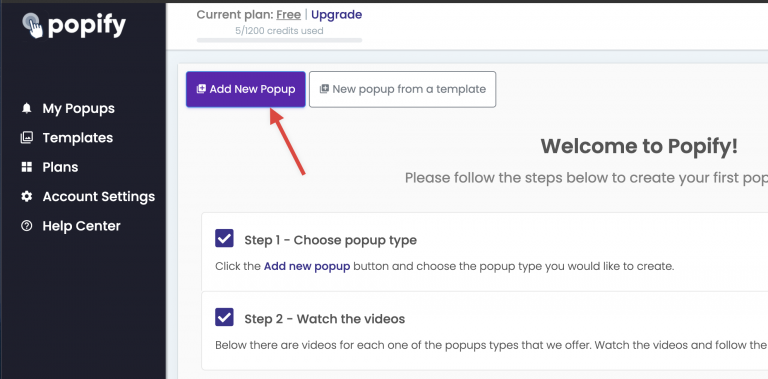
1. From the Popify dashboard, click Add new popup.
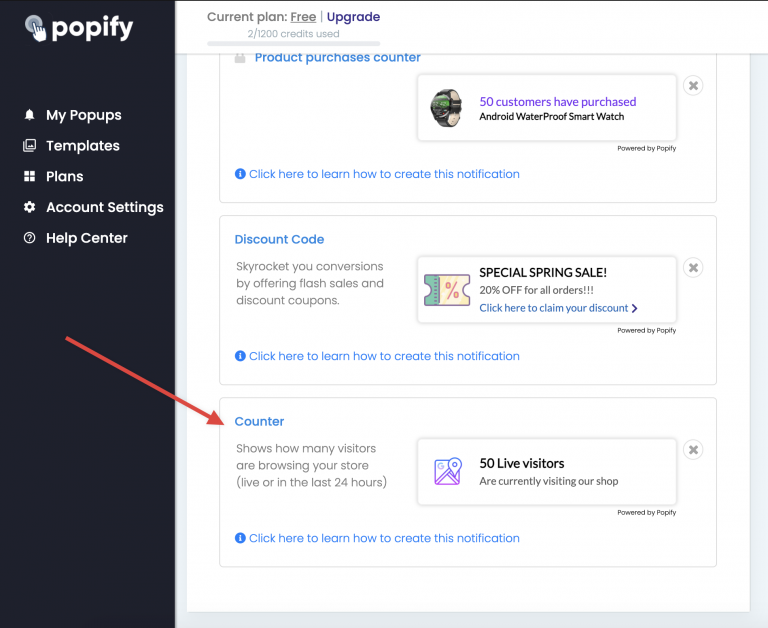
2. Select the Counter popup type.
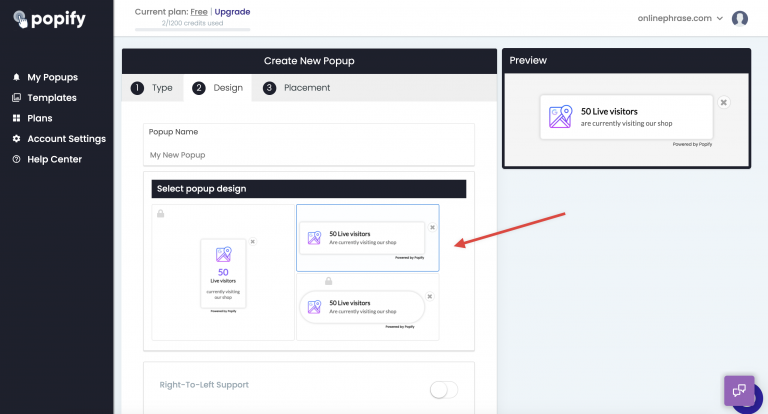
3. Select the popup design you want to use.
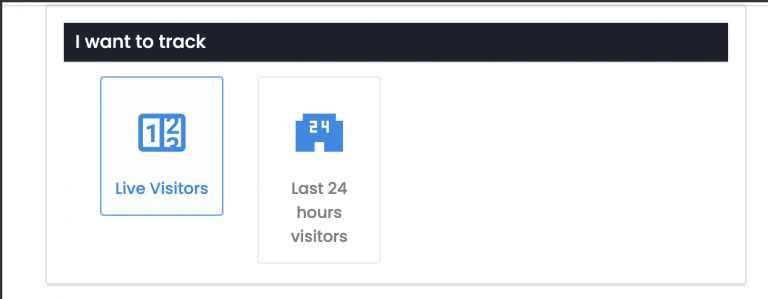
4. Select what data to show:
Recent visitors who visited your store in the last 24 hours
Live visitors currently browsing your store
5. Edit the popup text.
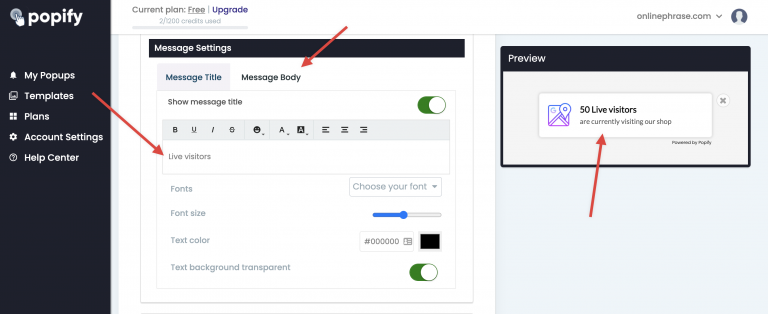
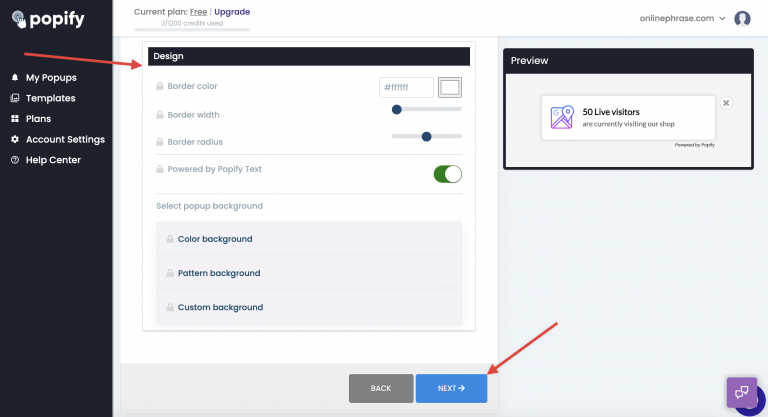
6. Adjust the popup design and click Next.
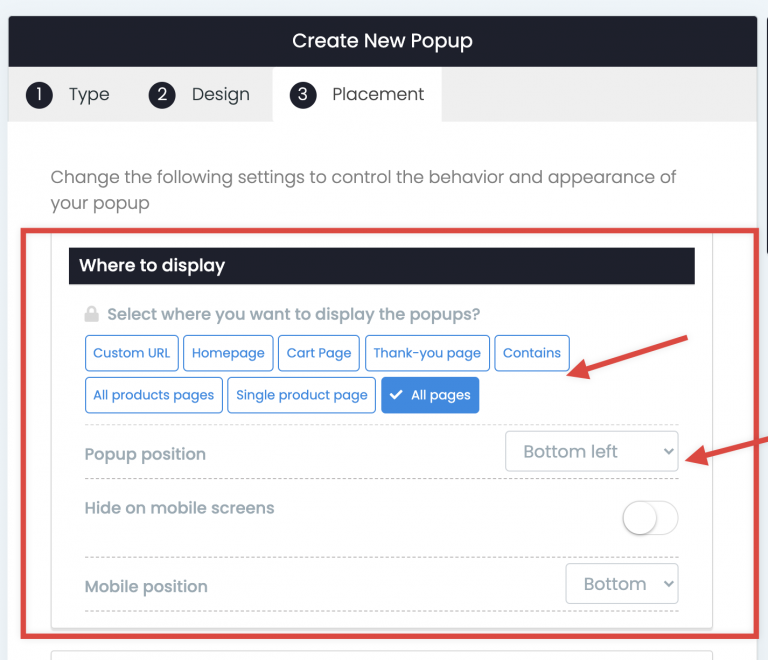
7. Choose the pages where the popup should appear and its position on the screen.
8. When you're done, click Launch.
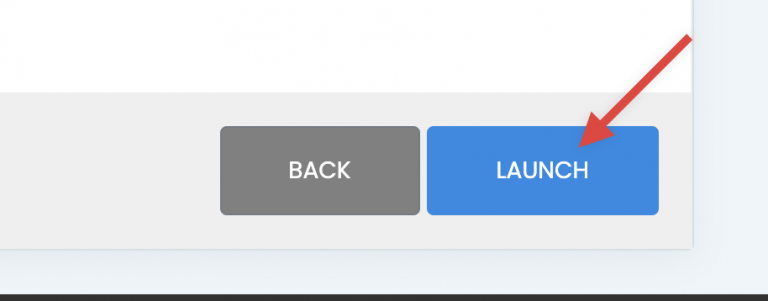
Your counter popup is saved and starts showing on your Wix store. To see it, open your store in a new tab and refresh the page.
Notes for Wix stores
Popify must be installed on your site first. See how to install Popify on Wix.
The Wix free plan allows 1 active popup with the default design. To run a live counter alongside another active popup, upgrade to a paid plan, which includes unlimited active popups and full design customization. See pricing.
Can't see the popup?
View your store in an incognito window or clear your browser cache, then reload. See also why don't I see my popup notifications.
Still can't see it? Contact us or email [email protected].