

How to create a reviews notification with Popify?
To create a reviews popup, click New notification in the Popify dashboard, select Reviews, and choose your reviews app: Popify supports Editorify and Ryviu. Pick all reviews or one product's reviews, set the pages and position, adjust the design, and click Launch. Popify refreshes the reviews every 2 hours.
Before you start
Install one of the supported reviews apps, Editorify or Ryviu, and import some reviews with it. Popify shows the reviews that app already holds, so a reviews popup needs at least a few reviews before you create it.
Create a reviews popup
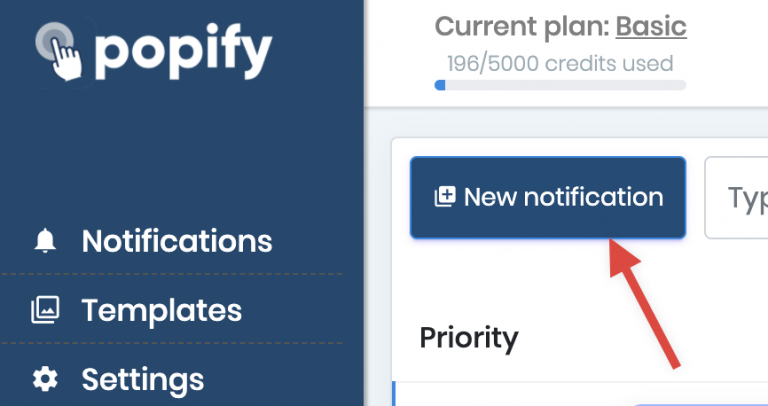
1) From the Popify dashboard, click New notification:
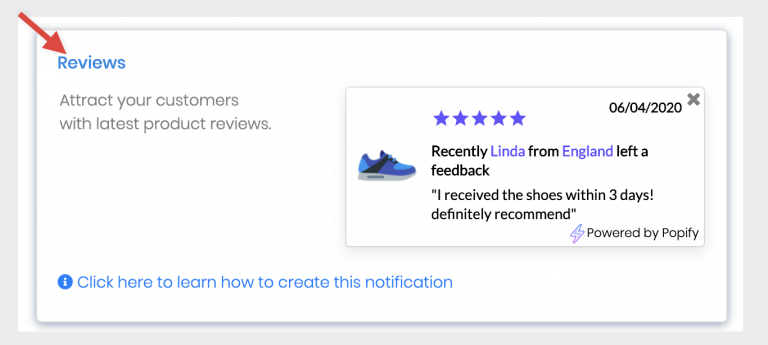
2) Select Reviews:
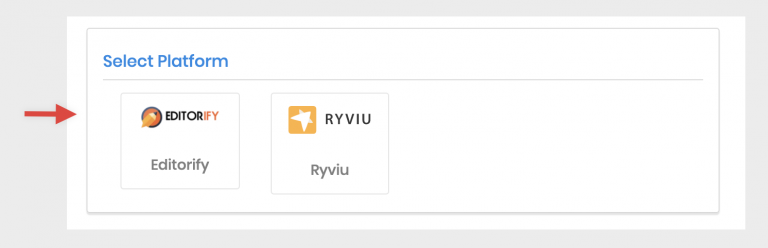
3) Select your reviews platform: Editorify or Ryviu.
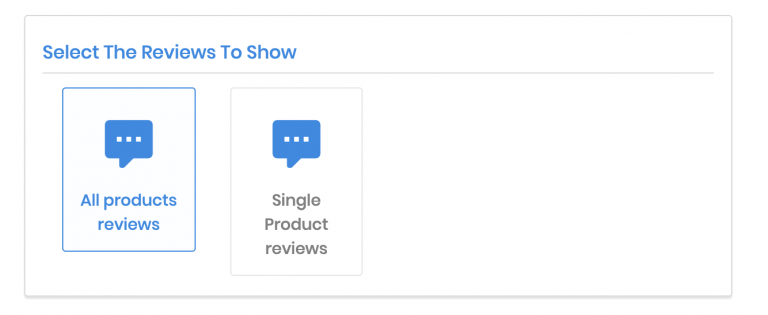
4) Choose whether to show all reviews or the reviews of a specific product:
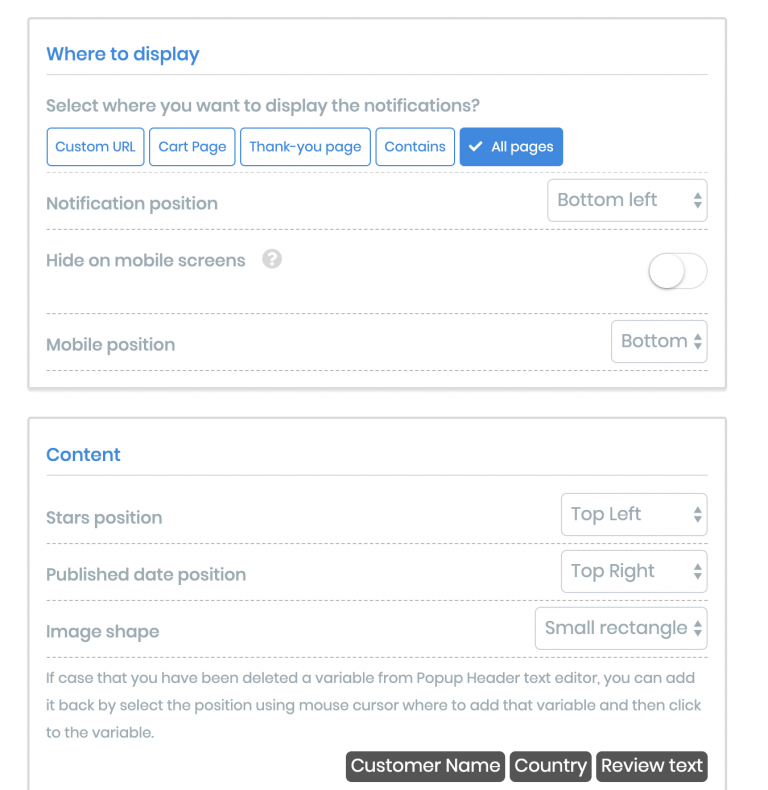
5) Choose the pages that show the popup and its position on the screen. You can also change the stars and date position and the product image shape. Then click Next.
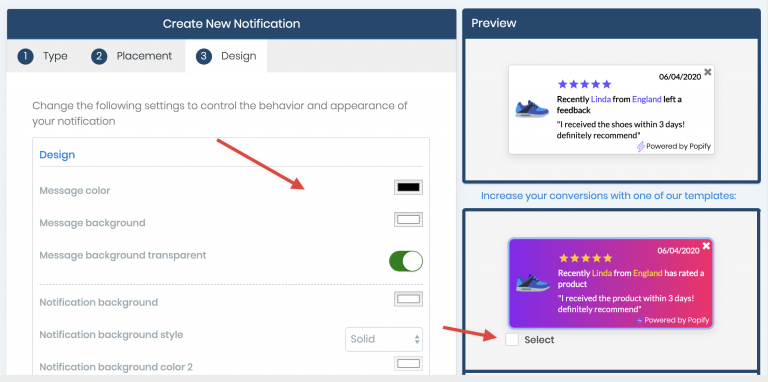
6) On the design step, adjust the design manually or choose one of the Popify templates.
7) When you're happy with the design, click Launch at the bottom of the screen.
How reviews are updated
When you create the popup, Popify loads the current reviews from the reviews app you selected. After that, it checks for the latest reviews every 2 hours, counted from the time you created the popup.
Using Ryviu
The steps are the same for both apps. For a Ryviu walkthrough with its own screenshots and video, see how to create a review popup using Popify and Ryviu.
Using Editorify
Editorify is a Shopify app for importing product reviews to your store. After you import reviews with Editorify, select Editorify as the reviews platform in step 3. To learn more about the app, see the Editorify help center.
Video guides
How to add product reviews popups on Shopify
Creating a reviews popup with Popify and Editorify:
How to create a reviews notification with Popify?