

How to change the order of the notifications on my store?
To change the order of your Popify notifications, open the Popify dashboard and drag each notification by the arrows next to it into the position you want. Your store shows notifications from top to bottom in the order set in the dashboard. Only enabled notifications appear, so check that each one is switched on.
Reorder your notifications
1. Log in to your Popify dashboard.
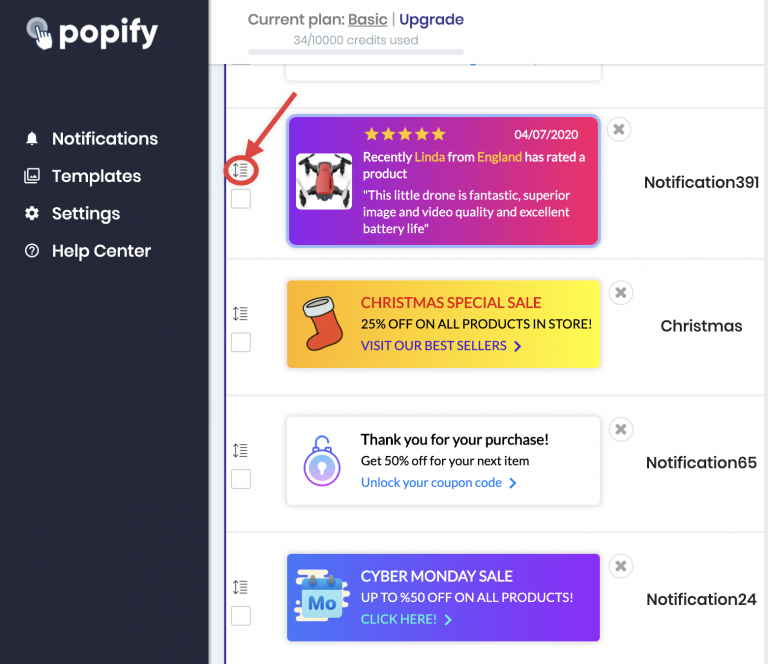
2. Find the notification you want to move and drag it by the arrows next to it into its new position:
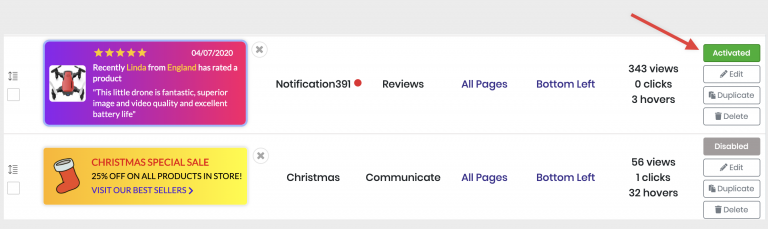
3. Make sure the notification is enabled to show on your store:
How the order works
Popify shows your notifications on the store from top to bottom, following the order in the dashboard. A notification that is switched off is skipped. To choose which pages show each notification and how often it appears, see the targeting and triggers guide.