

How to upload an image to my notification?
To upload your own images to a Popify notification, connect a Publitio account (an image cloud service) under Settings in the Popify dashboard, then use Choose File and Upload image in the notification's Image Settings. Your images are stored in your Publitio account. Image uploads are included in paid plans.
Steps
1. Register an account on Publitio.
2. Log in to your Popify dashboard, click Settings in the side menu and scroll to the image cloud API settings. Paste the API key and secret key from your Publitio dashboard.
3. Click Save changes.
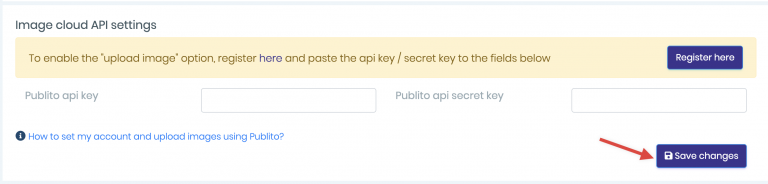
4. Create a new notification and scroll to the Image Settings section.
5. Click Choose File and select the image you want to use.
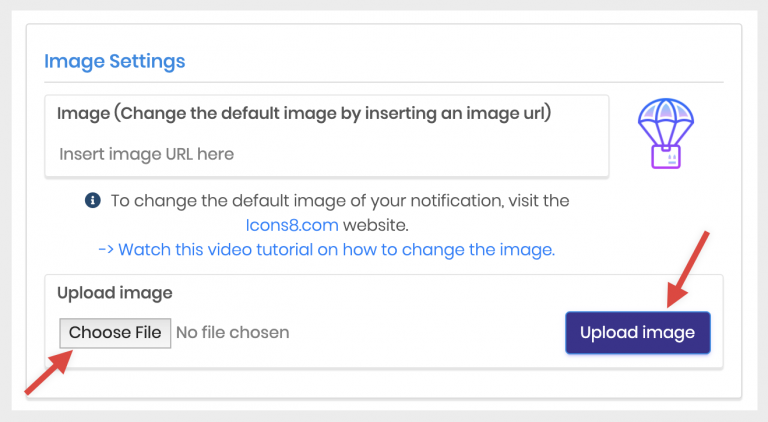
6. Click Upload image.
Your image is uploaded and appears in the notification.
Video guide
How to enable images upload for your popup notifications?
Where your images are stored
Popify doesn't store your images on its servers. They are stored in your own Publitio account, which has its own storage and bandwidth limits. If you go over them, you'll need to upgrade your Publitio account. See Publitio's pricing plans.