

How to setup Abandoned Cart Recovery push notifications on your Wix store?
To recover abandoned carts on your Wix store, open Abandoned carts recovery in the Popify dashboard, set up an opt-in so shoppers can subscribe to web push notifications, then activate up to 3 reminders under Reminders. Subscribers who leave items in their cart then get reminders. Requires the Basic plan or above (not Starter or the Wix free plan).
Before you start
Plan: Basic or higher. If you're on Starter or the Wix free plan, upgrade from the Popify dashboard under Plans. On Wix, the charge goes through Wix billing. See how to change your plan and pricing.
App installed: Popify must be installed on your Wix store. See how to install Popify on Wix.
Browsers: web push only works in supported browsers. Safari, iPhone and iPad don't support it. Check the supported browsers list.
Step 1: Set up an opt-in
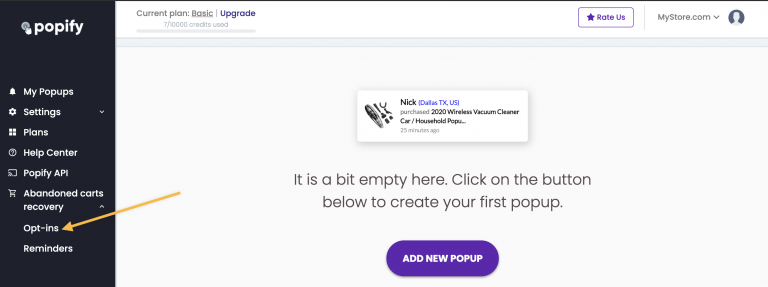
1. Click Opt-ins under "Abandoned carts recovery" on your dashboard.
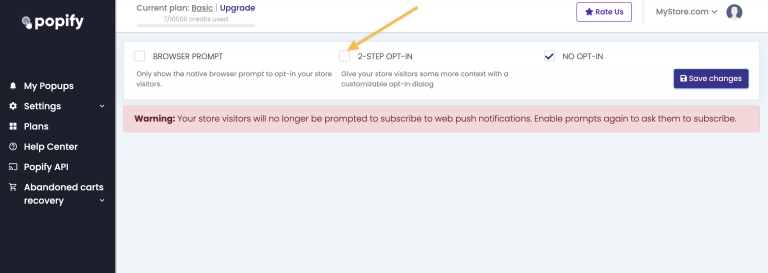
2. Choose an opt-in method. An opt-in asks your store visitors for permission to send them promotions and offers. Once a shopper clicks "Allow", you can send them web push notifications to bring them back to your Wix store.
The Opt-Ins page offers 3 options. We recommend the 2 Step OPT-IN.
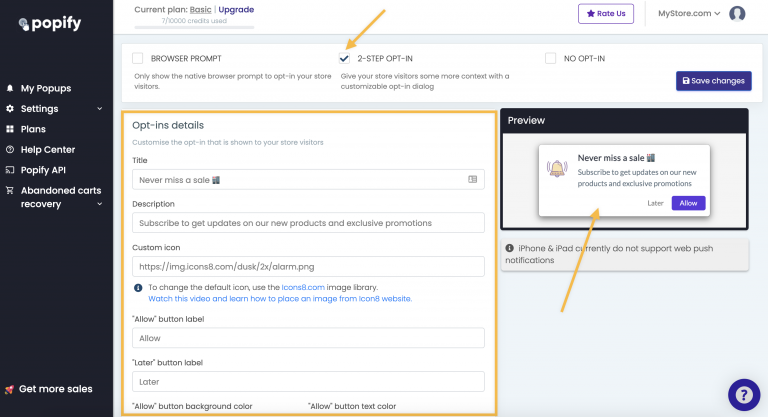
The 2 Step OPT-IN is a customizable dialog box that explains why shoppers should subscribe before the browser shows its default permission prompt. You can customize how the dialog box looks, the button color and text, the message, the placement, and when it appears on the screen.
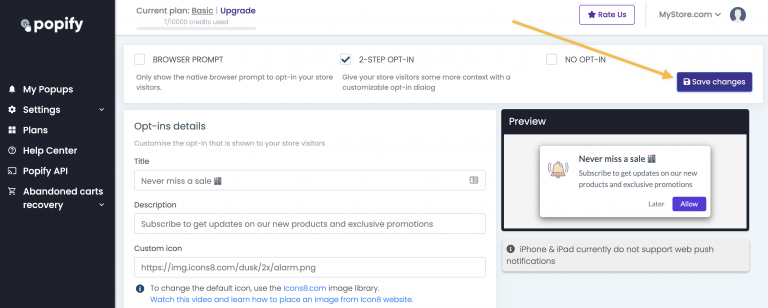
3. When you're done choosing and styling your opt-in, click Save changes.
Step 2: Activate your reminders
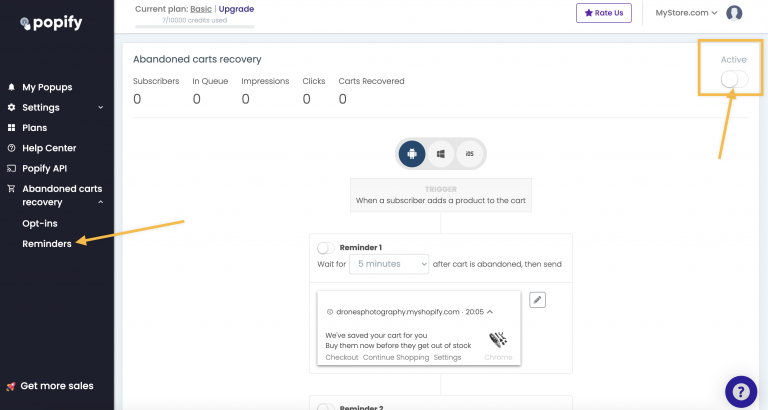
4. Click Reminders under "Abandoned cart recovery" on the side menu, then turn on the Active switch on the right side of the screen.
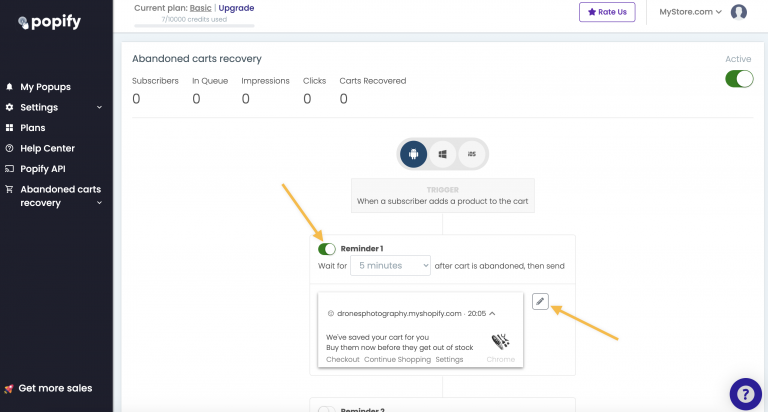
5. Enable the reminders you want to send (up to 3) and set when each one is sent. To edit a reminder's text and display, click the edit icon next to it.
Step 3: Test it on your store
6. Visit your Wix store in a supported browser and check that you see the opt-in and then the browser prompt. Allow notifications, add a product to your cart, and confirm you receive push notifications according to the reminders you set.
If you don't see the opt-in or don't receive notifications, first make sure you're using a supported browser. If it still doesn't work, contact us or email [email protected].
Video guide
How to add abandoned cart push notifications recovery to your store?