

How to create a recent orders notification with Popify?
To create a recent orders popup, make sure your store has at least one order, then click New notification in the Popify dashboard and choose the Customer activity type. Set the pages, placement and product image shape, adjust the design, and click Launch. Popify imports your existing orders and checks for new ones once a day.
Steps
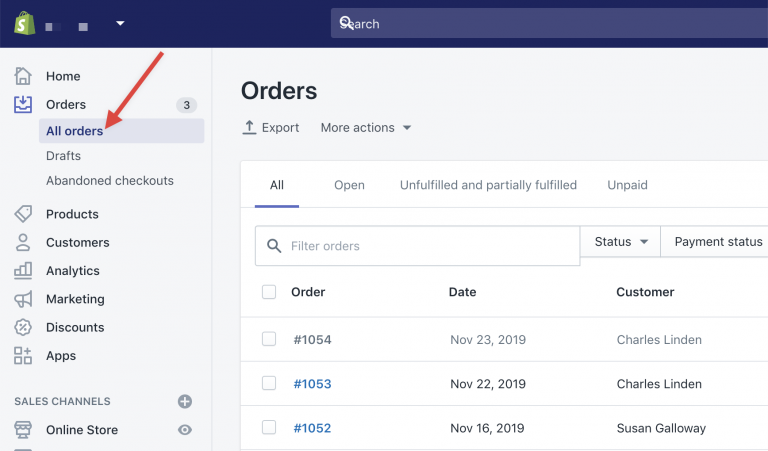
1) Make sure your store has at least one order. On Shopify, you can check this in your Shopify admin:
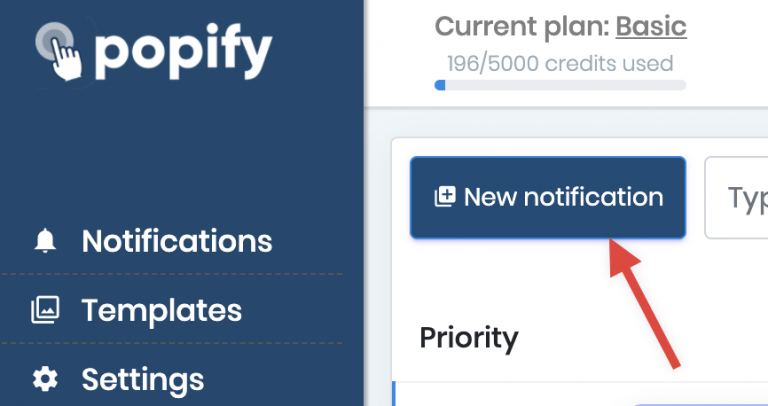
2) Go to the Popify dashboard and click New notification:
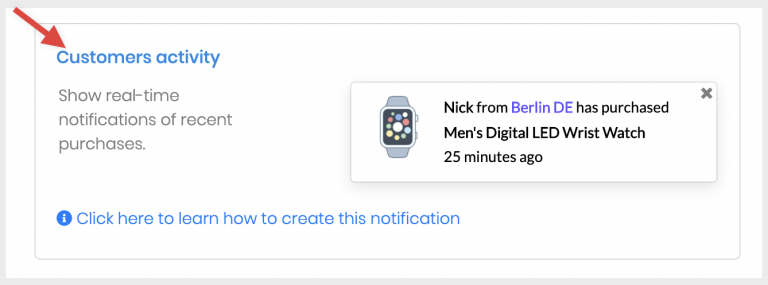
3) Select the Customer activity notification type:
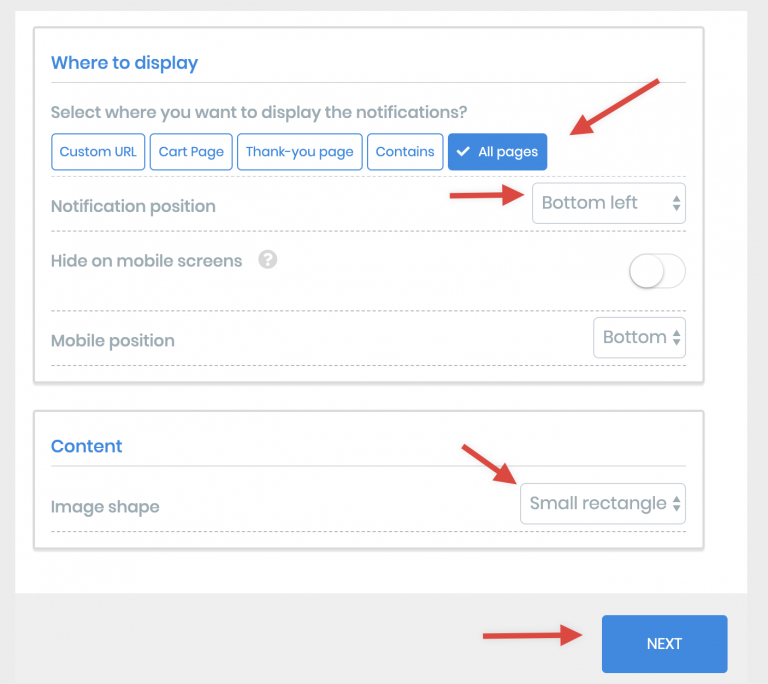
4) Choose which pages show the notification, its placement and the product image shape. When you're done, click Next:
5) On the design step, adjust the notification design.
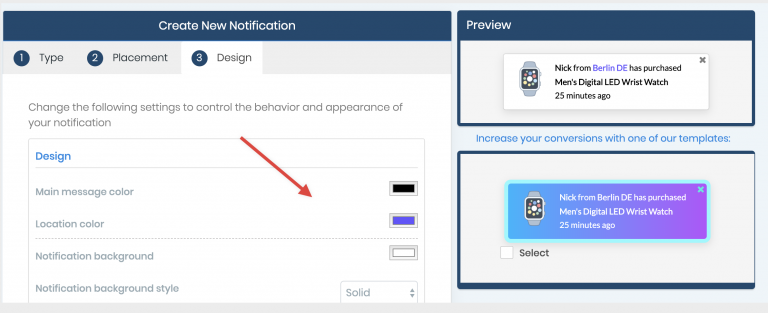
6) When you're done, click Launch at the bottom of the screen.
How orders are updated
When you create the notification, Popify imports your current orders. From then on, it checks for new orders once a day. If you have no orders yet, see I don't have any sales yet.
Are recent orders popups added automatically?
Yes. Once a recent orders popup is active, every new order placed on your store becomes a popup automatically. You don't add orders by hand. New orders are picked up by Popify's daily check, so a brand-new order can take up to a day to appear.
Video guide
How to create a recent orders notifications with Popify?