

How to upload background images for my popup notifications?
To upload a background image for a Popify popup, connect a Publitio account (an image cloud service) under Settings in the Popify dashboard. Then create or edit a popup, open the Design step, and use Background pattern upload to upload and crop your image. Background patterns and image uploads are included in paid plans.
Step 1: Connect Publitio
1. Register an account on Publitio.
2. Log in to your Popify dashboard, select Settings in the side menu and scroll to the image cloud API settings. Paste the API key and secret key from your Publitio dashboard.
3. Click Save changes.
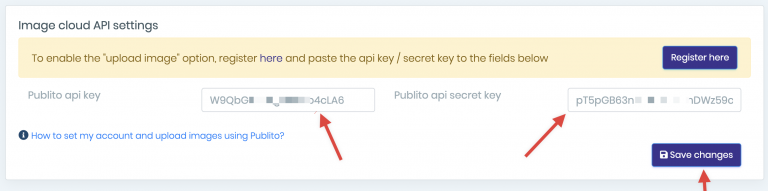
Step 2: Upload and crop the background image
4. In the Popify dashboard, create or edit any popup.
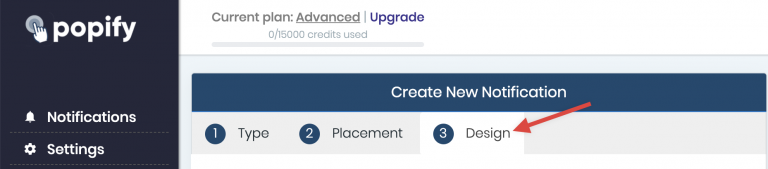
5. Click the third step, Design.
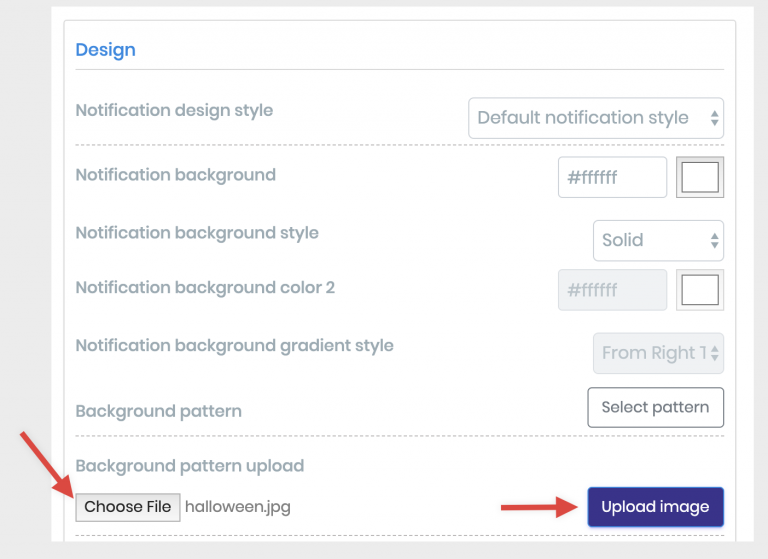
6. Scroll to the Background pattern upload section and click Choose file. Select the image you want and click Upload image.
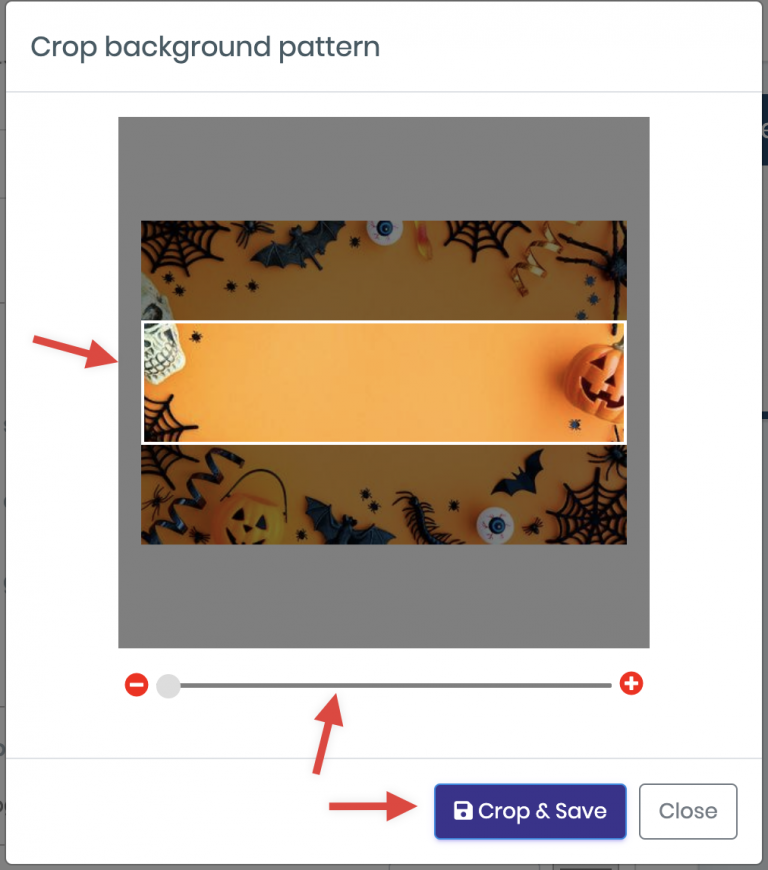
7. The cropping window opens. Use the zoom bar at the bottom and drag the white frame over the area you want as the background, then click Crop&Save.
8. The cropped image is saved and appears in your popup preview.
Other background options
Popify popups also support a background color or gradient, ready-made background patterns, and a border color and width. To upload an image inside the popup rather than behind it, see how to upload an image to your notification.
Video guide
How to sell more with sales pop up on Shopify?