

How to create recent sales popups in your Wix store?
To show recent sales popups on your Wix store, make sure your store has at least one order, then click New popup in the Popify dashboard and choose the Customer activity popup type. Set the pages, placement and product image shape, adjust the design, and click Launch.
Steps
1) Make sure your store has at least one order. You can check this in your Wix dashboard:
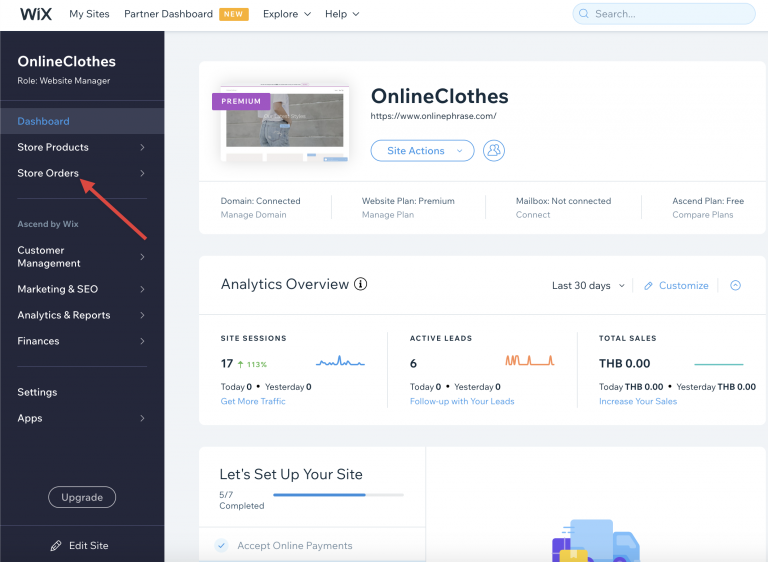
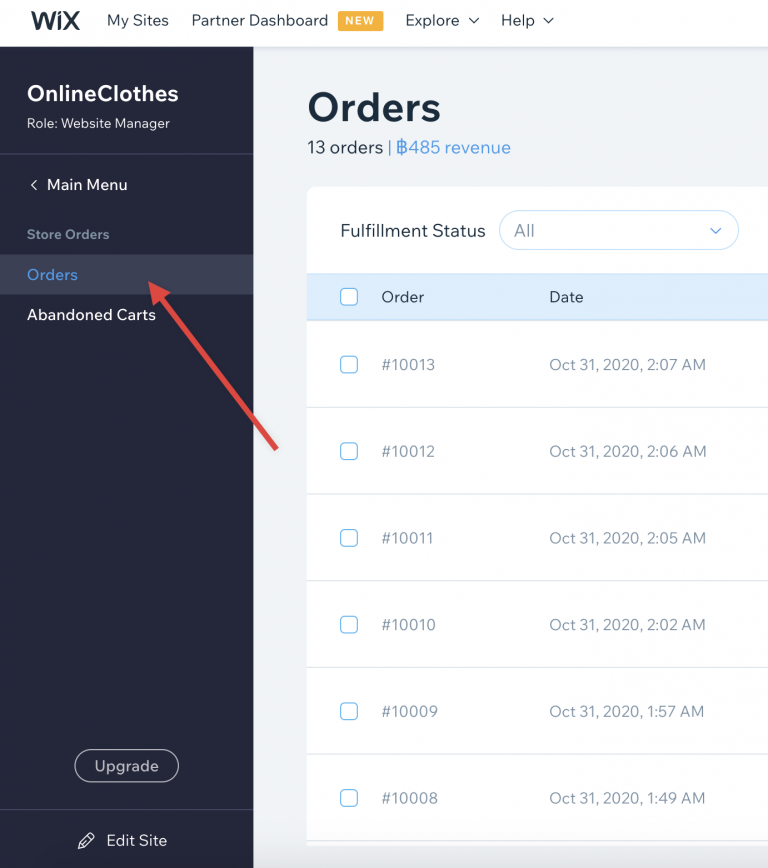
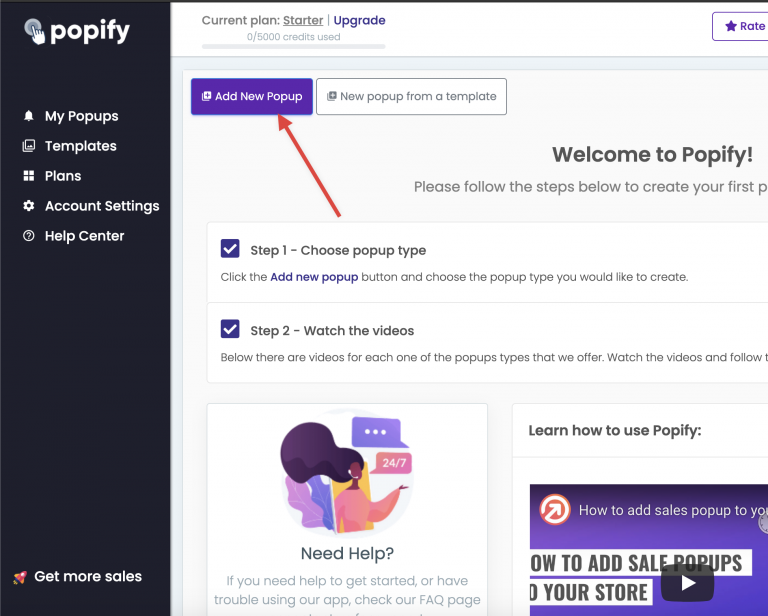
2) Go to the Popify dashboard and click New popup:
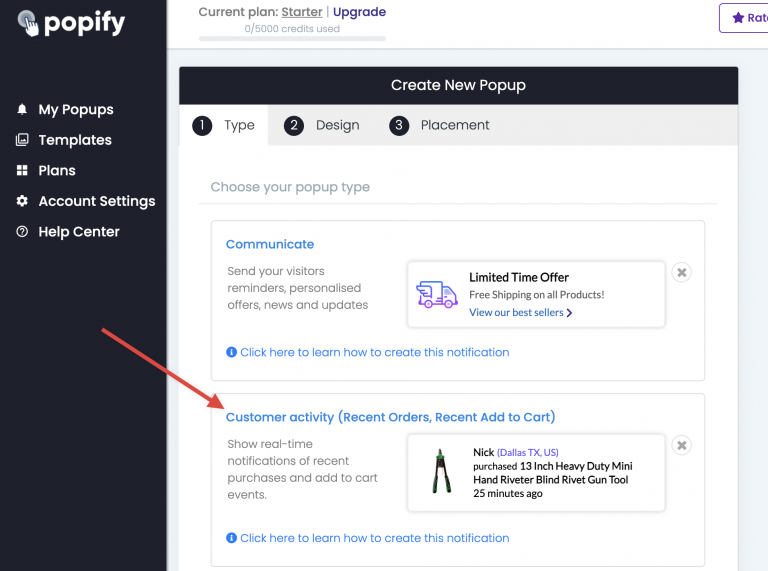
3) Select the Customer activity popup type:
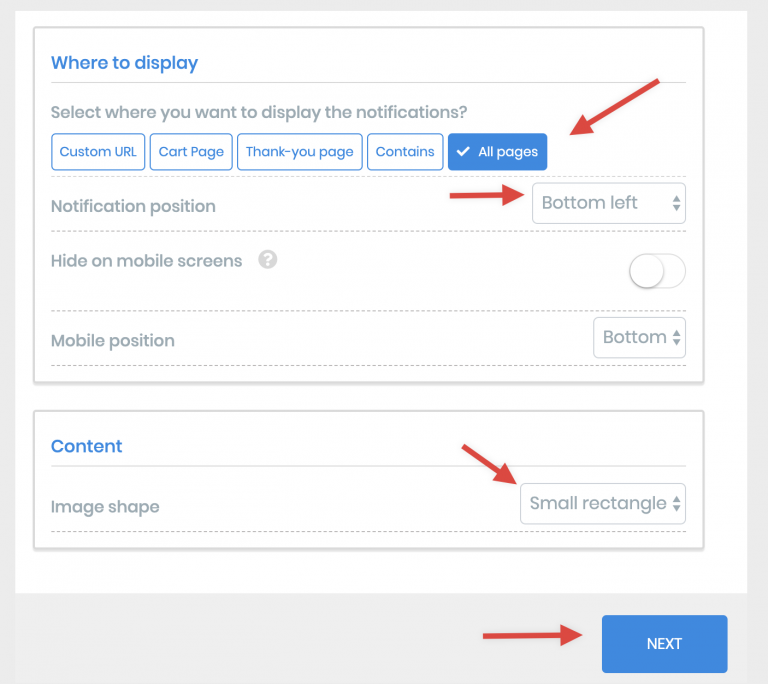
4) Choose which pages show the popup, the popup placement and the product image shape. When you're done, click Next:
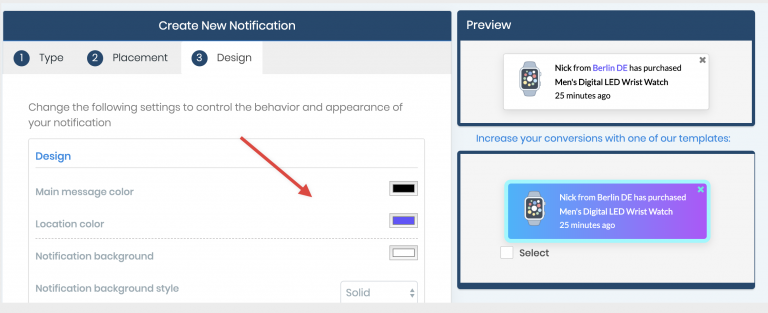
5) On the design step, adjust the popup design.
6) When you're done, click Launch at the bottom of the screen.
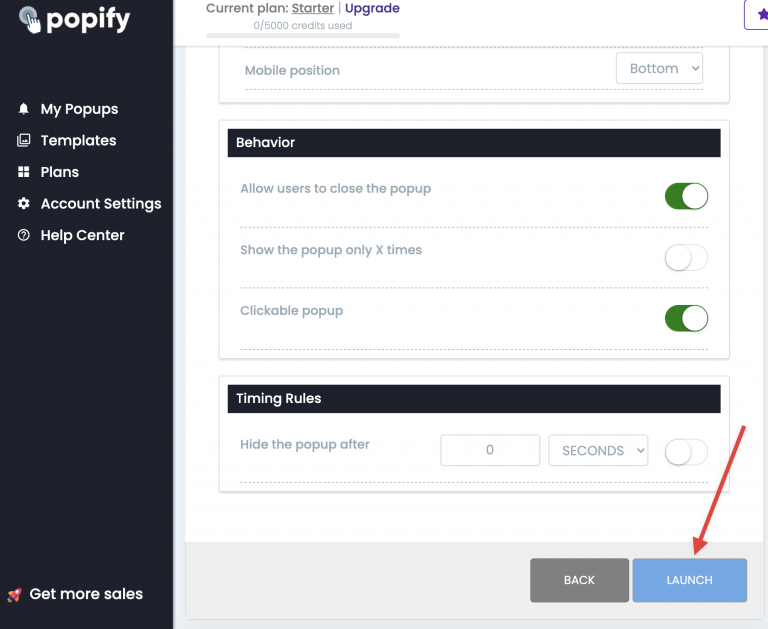
Your sales popup is saved and starts showing on your store. To see it, open your store in a new tab and refresh the page.
Can't see the popups?
View your store in an incognito window or clear your browser cache, then reload. See also why my recent sales popups are not showing.
Still can't see them? Contact us or email [email protected].
Video guide
How to add Sales Popups notifications to your store?